Intra-Day
This option provides a report of the real-time call data adherence and schedule maintenance for a current day. The update for the current day is automated and you can generate it with a single click. The system defaults to the last date for which you have entered call and AWT data. WFO Live considers this date as the current day.
What do you want to do?
Tasks in this Topic Include:
Related Tasks:
- Today’s Roster
- Today’s Schedule Exceptions
- Performance Charts
- Service Performance Reports
- Calculate Cumulative Ratios
Generate an Intra-Day Report
- Select Intra-day from the Manage left-navigation menu.
- Select the date to report on from the Date drop-down menu.
Applying Filters
- In the Skill Code drop-down, select
a code(s).
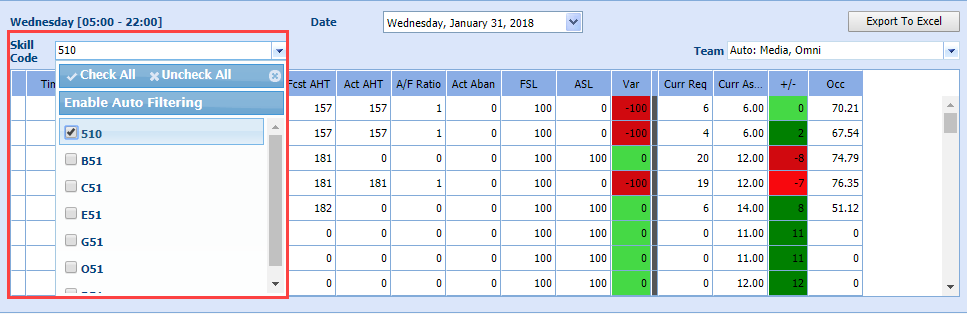
Four options are available: Check All, Uncheck All, Auto Filtering Enabled/Disabled, and Manually checking/unchecking boxes.- Check All selects all Skill Codes.
- Uncheck All de-selected all Skill Codes.
- Auto Filtering Enabled automatically selects the relevant Skills Codes. When a user selects a skill(s) on the forecast screen, all of the Skill teams that Skill belongs to are automatically selected (Default Setting).
- Manually check boxes or uncheck boxes.
-
In the Team drop-down, select a team(s).
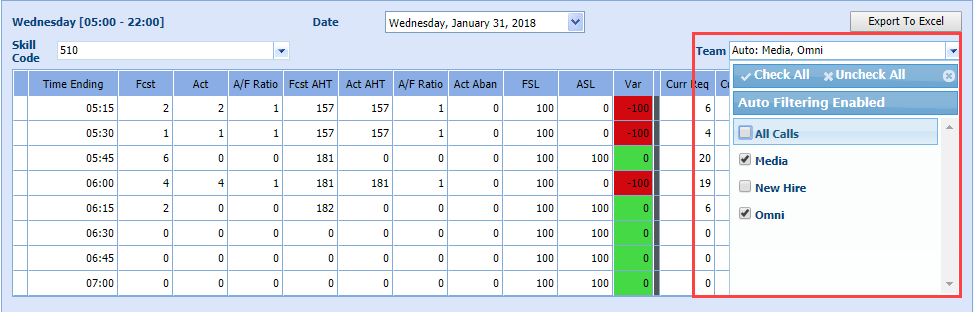
Four options are available: Check All, Uncheck All, Auto Filtering Enabled/Disabled, and Manually checking/unchecking boxes.
- Check All selects all Skill Codes.
- Uncheck All de-selected all Skill Codes.
- Auto Filtering Enabled automatically selects the relevant Skills Codes. When a user selects a skill(s) on the forecast screen, all of the Skill teams that Skill belongs to are automatically selected (Default Setting).
- Manually check boxes or uncheck boxes.
- Click on another area of the Monet WFO Live interface.
- Return to Manage > Intra-day.
- The filters previously selected
in Skill Code
and Team are remembered.

The filter selections for Skill Code and Team are remembered per user across multiple sessions and browsers. The Skill Code and Team filters will remain from the last setting when: using a different browser, closing the browser, opening a new version, and logging back in; logging out and logging back in; leaving a section within Monet and coming back.
Print or Export Intra-Day Reports
- Select Export
to Excel when the Intra-Day Report has generated.
- Double click to open the file.
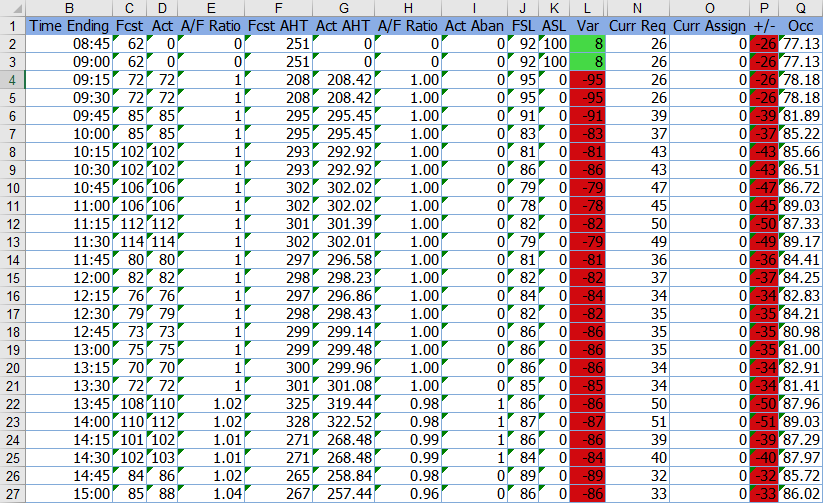
- Print as desired.